

A security profile is a packaged set of guardrail configurations that Protector Plus applies when evaluating prompts and responses. Each GenAI application is bound to a security profile — multiple applications can share a profile, or each can have its own.Documentation Index
Fetch the complete documentation index at: https://docs.protectorplus.cloudsine.tech/llms.txt
Use this file to discover all available pages before exploring further.
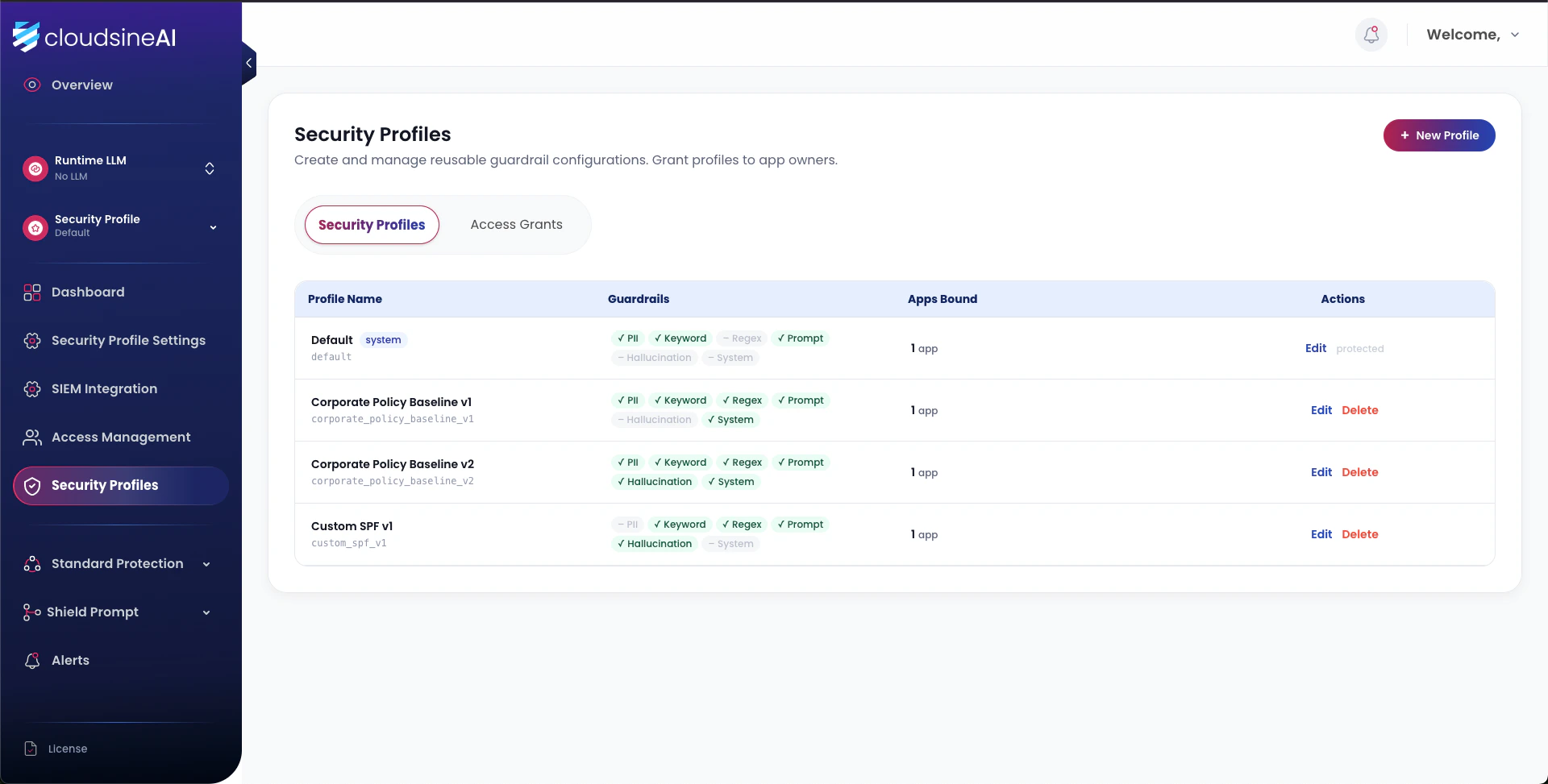
Create a profile
Forwarding mode
The GenAI application points its LLM endpoint at the Protector Plus FQDN. Protector Plus applies the security profile bound to the FQDN before forwarding to the origin LLM.| Setting | Description |
|---|---|
| Runtime LLM URL | Valid FQDN unique to the GenAI application. Must resolve to Protector Plus. |
| Origin Server IP | IP address of the LLM endpoint. |
| Origin Protocol | Protocol type of the LLM endpoint (HTTP / HTTPS). |
| Origin Protocol TCP port | Port number of the LLM endpoint. |
| LLM Block Message | Message returned to the GenAI app on harmful-prompt detection. |
Non-forwarding mode
The application calls Protector Plus directly with an API key. No FQDN is required. The application makes the final allow/deny decision based on the risk score returned by Protector Plus.| Setting | Description |
|---|---|
| Runtime LLM URL | Pseudo-URL (e.g., appname.pseudo-domain.local). |
| Origin Server IP | 127.0.0.1 |
| Origin Protocol | HTTP |
| Origin Protocol TCP port | 80 |
| LLM Block Message | default |
Per-application isolation in practice
The diagram below shows two GenAI applications bound to two separate security profiles on the same Protector Plus instance. Each application is routed via a unique FQDN; Protector Plus applies the bound profile before forwarding to the corresponding LLM endpoint.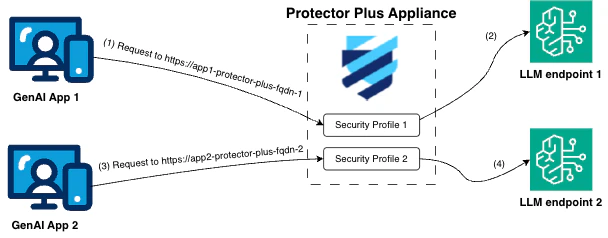
Tighten regulated apps
Apply stricter PII rules to customer-facing applications handling SG NRIC/FIN.
Per-domain thresholds
Tune prompt-injection thresholds higher for apps wired to sensitive tools.
Sandbox isolation
Run research apps at Level 1–2 in Monitor mode without blocking.
Multi-tenant control
Assign different profiles per tenant in shared-platform deployments.